
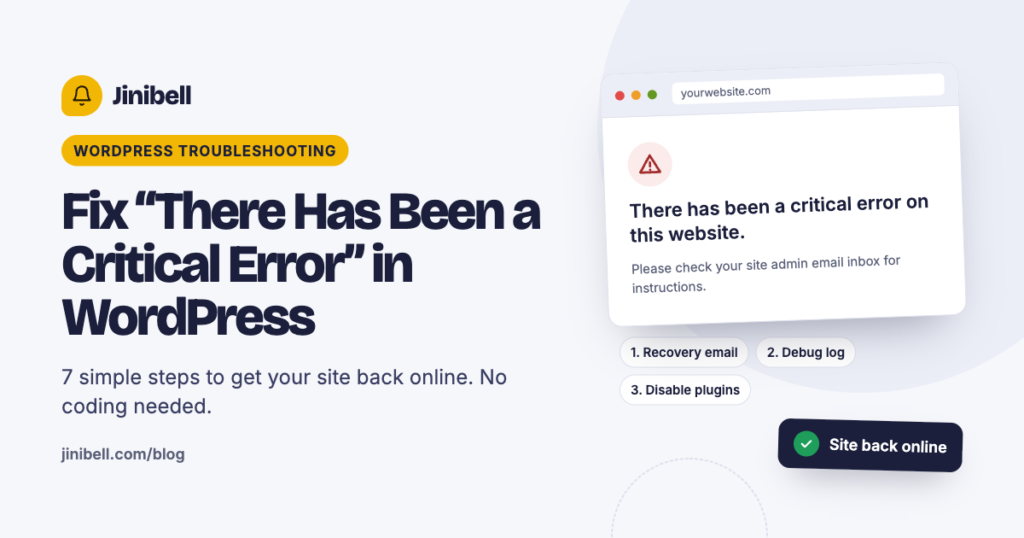
The quick answer
In most cases, “There has been a critical error on this website” is caused by a plugin or theme that crashed after an update. The fastest fix is to open the recovery link WordPress emailed you, or to rename your plugins folder to switch every plugin off at once.
The message can look scary because it often takes down both your site and your dashboard. The good news: your content is almost never lost. WordPress simply stopped loading because one piece of PHP code failed.
This guide walks you through finding the exact cause and fixing it, step by step, from the easiest fix to the most technical. Most sites are back online after step 1 or step 3.
What the critical error means and what causes it
The critical error is WordPress’s way of saying a PHP fatal error stopped the page from loading. Since WordPress 5.2, instead of a blank white screen (the old “white screen of death”), WordPress shows this message and emails the site admin a special recovery link.
You may also see the older wording: “The site is experiencing technical difficulties.” It is the same problem.
| Cause | How you can tell | Fix (step below) |
|---|---|---|
| Plugin conflict or a broken plugin update | The error appeared right after installing or updating a plugin | Steps 1 and 3 |
| Theme error | It started after a theme update or editing functions.php | Steps 1 and 4 |
| PHP version mismatch | Your host upgraded PHP, or a plugin needs a newer PHP version | Step 6 |
| PHP memory limit too low | The error log mentions “Allowed memory size exhausted” | Step 5 |
| Corrupted WordPress core files | A WordPress update was interrupted | Step 7 |
| Bad code snippet | You pasted code into functions.php or a snippets plugin | Steps 2 and 4 |
How to fix the critical error in WordPress: 7 steps
Work through these in order and stop as soon as your site loads. Before you start, take a backup if your host offers one-click backups.
Step 1: Use the recovery mode email
Check the inbox of your site’s admin email (including spam) for a message titled “Your Site is Experiencing a Technical Issue”. It names the plugin or theme that failed and contains a recovery mode link.
- Click the link and log in.
- WordPress shows which plugin or theme caused the error.
- Deactivate it, then exit recovery mode.
No email? Your site may not be able to send mail. Move on to step 2.
Step 2: Turn on debug mode to find the cause
Open wp-config.php in your host’s File Manager or by FTP. Just above the line /* That's all, stop editing! */, add:
define( 'WP_DEBUG', true );
define( 'WP_DEBUG_LOG', true );
define( 'WP_DEBUG_DISPLAY', false );
Reload your site, then open wp-content/debug.log. The last “PHP Fatal error” line shows the file that failed. A path like wp-content/plugins/plugin-name/... tells you exactly which plugin to fix.
When you’re done, change true back to false in the first two lines.
Step 3: Deactivate all plugins without the dashboard
- In File Manager, open
wp-content. - Rename the
pluginsfolder toplugins-off. - Reload your site. If it works, a plugin was the cause.
- Rename the folder back to
plugins. All plugins are now inactive. - In Plugins, activate them one at a time and reload the site after each. The one that brings the error back is the culprit.
Replace that plugin, or check for an update from its developer.
Step 4: Switch to a default theme
In wp-content/themes, rename your active theme’s folder (for example mytheme to mytheme-off). WordPress falls back to a default theme such as Twenty Twenty-Five if it is installed. If the site loads, the error is in your theme, often a code snippet added to functions.php.
Step 5: Increase the PHP memory limit
If the log says “Allowed memory size of … bytes exhausted”, add this line to wp-config.php:
define( 'WP_MEMORY_LIMIT', '256M' );If the error stays, ask your host to raise the server’s PHP memory limit too.
Step 6: Check your PHP version
In your hosting panel, check the PHP version. Very old versions (below 7.4) break modern plugins, and a brand-new PHP version can break old ones. Switch to a version your plugins support; PHP 8.1 or 8.2 is a safe choice for most sites today.
Step 7: Reinstall WordPress core files
If nothing above helped, core files may be damaged. Download a fresh copy of WordPress from wordpress.org and upload only the wp-admin and wp-includes folders, replacing the old ones. Never overwrite wp-content or wp-config.php, which hold your content and settings.
How to prevent the critical error from happening again
Most critical errors come from too many plugins and untested updates, so fewer, lighter plugins and a safe update routine prevent nearly all of them.
- Back up before every update. Use your host’s daily backups or a backup plugin, and keep at least one copy off the server.
- Update one plugin at a time. If something breaks, you know exactly which update caused it.
- Test on a staging site. Many hosts offer a one-click staging copy where you can test updates before they reach your live store.
- Keep fewer plugins. Every plugin is code that can conflict with another. Replace heavy all-in-one plugins with small, focused ones, like our $4.99 plugins.
- Never edit
functions.phpon a live site. Use a child theme or a code snippets plugin with error protection. - Remove plugins you don’t use. Deactivated plugins can still cause trouble when they get updated or left outdated.
Can’t find a small plugin that does exactly what you need? Request a free custom plugin: if enough site owners need it too, we build it for free. Here’s how free custom WordPress plugin development works.
Frequently asked questions
Will I lose my content because of the critical error?
No. Posts, pages, products and orders are stored in your database, which the error doesn’t touch. Once the broken plugin or theme is fixed, everything comes back.
Why didn’t I get the recovery mode email?
WordPress sends it to the admin email in Settings, General. If your site can’t send mail, or the address is old, it never arrives. Use step 2 or step 3 instead.
Can I fix the critical error without FTP?
Yes. Most hosts have a File Manager in their control panel (cPanel, hPanel, Plesk) that lets you rename folders and edit wp-config.php in your browser.
The error only appears on some pages. Why?
A plugin or shortcode used only on those pages is failing, for example a checkout, form or slider plugin. Turn on debug mode (step 2), load that page, and check debug.log.
Is it safe to leave WP_DEBUG on?
Only while you troubleshoot, with WP_DEBUG_DISPLAY set to false so visitors can’t see errors. Switch it off afterwards.
What if none of the steps work?
Restore the last backup from before the error appeared, or ask your host’s support to check the server error log, which can show errors WordPress can’t.
Get your WordPress site back online
The critical error looks serious, but it almost always comes down to one plugin or theme file. Start with the recovery email, use debug mode to name the cause, and switch plugins off by renaming the folder if you’re locked out.
Once your site is back, keep it stable with fewer, lighter plugins. Browse our $4.99 plugins, each built to do one job well. And if the plugin you need doesn’t exist, request a free custom plugin and get it built when it reaches its vote goal.