
The quick answer
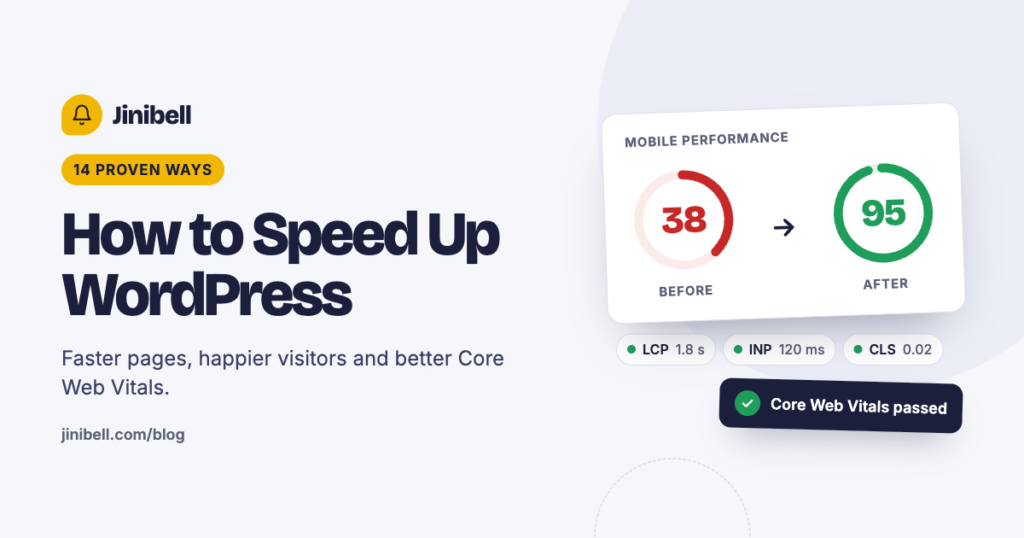
To speed up WordPress, start with the four fixes that make the biggest difference: good hosting, page caching, compressed images in modern formats, and fewer, lighter plugins. Most slow sites improve dramatically from these alone.
A slow site costs you twice. Visitors leave before the page loads, and Google uses page experience signals called Core Web Vitals when ranking pages. A faster site keeps more visitors, sells more and has a better chance of ranking.
This guide shows you how to measure your speed, then walks through 14 proven fixes in order of impact, plus extra steps for WooCommerce stores. You don’t need to be a developer: most fixes take a few minutes in your dashboard or hosting panel.
How to test your WordPress site speed
Test before you change anything, so you can see what actually helped. Use Google’s free PageSpeed Insights and check the mobile score first, because that’s what Google mainly uses.
- Go to pagespeed.web.dev and enter your home page URL.
- Note the mobile results for the three Core Web Vitals.
- Test one more page type too, such as a blog post or a product page.
- Re-test after each fix, using the same pages.
These are Google’s targets for a “good” experience:
| Core Web Vital | What it measures | Good |
|---|---|---|
| Largest Contentful Paint (LCP) | How fast the main content appears | 2.5 seconds or less |
| Interaction to Next Paint (INP) | How quickly the page reacts to taps and clicks | 200 milliseconds or less |
| Cumulative Layout Shift (CLS) | How much the layout jumps while loading | 0.1 or less |
If PageSpeed Insights shows “field data” from real visitors, trust that over the lab score. Brand-new sites often only show lab data until they have enough visitors.
14 proven ways to speed up WordPress
They’re ordered by impact: the first five fix most slow sites.
1. Use good hosting
Hosting sets the speed limit for everything else. Very cheap shared hosting puts hundreds of sites on one server. Choose a host with SSD or NVMe storage, servers near your visitors, and built-in caching. If your server response time (“Time to First Byte” in PageSpeed Insights) is over about 0.8 seconds, hosting is likely your main problem.
2. Turn on page caching
Caching saves a ready-made copy of each page, so WordPress doesn’t rebuild it for every visitor. Use your host’s built-in cache if it has one; otherwise install one caching plugin, such as LiteSpeed Cache (on LiteSpeed servers), WP Super Cache or W3 Total Cache. Use only one caching plugin at a time.
3. Compress images and use WebP or AVIF
Images are usually the heaviest part of a page. Before uploading, resize photos to the width they’re shown at (rarely wider than 1600px), and serve them as WebP or AVIF, which are much smaller than JPEG or PNG. An image optimization plugin can convert your existing library automatically.
4. Remove plugins you don’t need
Every plugin adds code, and some load scripts on every page. Deactivate and delete plugins you don’t use, and replace heavy all-in-one plugins with small, focused ones that do just the job you need, like our $4.99 plugins. Fewer plugins also means fewer conflicts like the WordPress critical error.
5. Choose a lightweight theme
Heavy multipurpose themes and page builders load lots of CSS and JavaScript you never use. A lightweight theme, or the block editor instead of a page builder, often improves load time more than any plugin can.
6. Upgrade to a recent PHP version
Newer PHP versions run WordPress noticeably faster. In your hosting panel, switch to PHP 8.2 or newer, then check your site still works. If something breaks, switch back and update the plugin that failed.
7. Use a CDN
A content delivery network (CDN) stores copies of your images, CSS and JavaScript on servers around the world, so visitors load them from somewhere nearby. Cloudflare’s free plan is the easiest way to start.
8. Lazy-load images and videos
WordPress lazy-loads images by default, so images further down the page load only as visitors scroll. Make sure your theme or plugins don’t switch this off, and use a lightweight preview image instead of loading full YouTube embeds straight away.
9. Don’t lazy-load your main image
The big image at the top of a page (the hero or featured image) should load immediately, because it’s usually what Google measures for LCP. Exclude it from lazy-loading in your optimization plugin and make it as small in file size as possible.
10. Minify and defer CSS and JavaScript
Minifying removes extra spaces from code files. Deferring JavaScript lets the page show before scripts run. Most caching plugins include both options. Turn them on one at a time and test your site after each, because aggressive settings can break menus or forms.
11. Load fewer web fonts
Each font style is another file to download. Use one or two font families, only the weights you need, and font-display: swap so text shows immediately. System fonts load fastest of all.
12. Limit third-party scripts
Chat widgets, tracking pixels, heatmaps and social embeds all load code from other servers. Keep only the ones you actually use, and load them after the page has finished loading where possible.
13. Clean up your database
Over time, WordPress stores thousands of post revisions, spam comments and expired temporary data. Clean them with a database optimization plugin, and limit future revisions by adding this line to wp-config.php:
define( 'WP_POST_REVISIONS', 5 );14. Keep everything updated
WordPress, themes and plugins regularly ship performance improvements. Update one item at a time and take a backup first, so you can roll back quickly if an update causes problems.
Extra speed fixes for WooCommerce stores
WooCommerce pages can’t always be cached the same way, because carts and checkouts are different for every shopper. These extra steps help stores the most:
- Exclude cart, checkout and My Account from caching, but keep caching your shop, category and product pages. Most caching plugins detect WooCommerce and do this automatically.
- Turn on object caching (Redis or Memcached) if your host offers it. It speeds up the database queries WooCommerce makes on every product and cart page.
- Check which scripts load on every page. Some plugins load cart, slider or review scripts sitewide. Use a tool like Query Monitor to see what loads on your blog posts and home page, and remove what isn’t needed there.
- Use smaller product images and limit gallery images to the ones that help shoppers decide.
- Clear old data: delete expired coupons, old abandoned-cart sessions and logs you no longer need under WooCommerce, Status.
- Enable High-Performance Order Storage (HPOS) under WooCommerce, Settings, Advanced, Features, if all your plugins support it. It stores orders in dedicated tables built for speed.
Your WordPress speed checklist
Short on time? Work through it in this order.
Today (about 30 minutes)
- Run PageSpeed Insights on your home page and one other page, and note the scores.
- Turn on page caching (fix 2).
- Delete plugins you don’t use (fix 4).
- Switch to PHP 8.2 or newer (fix 6).
This week
- Compress your images and convert them to WebP (fix 3).
- Make sure your main image isn’t lazy-loaded (fix 9).
- Set up a free CDN such as Cloudflare (fix 7).
- Remove third-party scripts you don’t need (fix 12).
When you have more time
- Move to better hosting if server response is still slow (fix 1).
- Replace a heavy theme or page builder (fix 5).
- Fine-tune minify and defer settings (fix 10), fonts (fix 11) and your database (fix 13).
Re-test after each step. Keep the changes that improved your scores, and undo any that broke something.
Frequently asked questions
Why is my WordPress site so slow?
The most common causes are slow hosting, no page caching, large uncompressed images, too many plugins and a heavy theme or page builder. PageSpeed Insights shows which of these affects your site most.
Which caching plugin is best for WordPress?
Use the one that matches your server. On LiteSpeed hosting, LiteSpeed Cache works best; on other servers, WP Super Cache or W3 Total Cache are solid free choices. If your host has built-in caching, you may not need a plugin at all.
Do too many plugins slow down WordPress?
It’s less about the number and more about what each plugin loads. One heavy plugin can slow a site more than ten light ones. Remove the ones you don’t use and replace bloated plugins with focused alternatives.
Does site speed affect Google rankings?
Yes, as part of Google’s page experience signals, measured by Core Web Vitals. Content relevance still matters most, but between similar pages, the faster one has an advantage, and visitors stay longer on fast pages.
What is a good PageSpeed Insights score for WordPress?
Aim for a mobile score above 80 and “good” ratings on all three Core Web Vitals. Passing Core Web Vitals matters more than reaching a perfect 100.
Can I speed up WordPress without a plugin?
Yes. Better hosting, a newer PHP version, a lightweight theme, resized images and removing unused plugins all work without adding a single plugin.
Make your WordPress site fast and keep it fast
Speeding up WordPress isn’t one big job; it’s a few high-impact fixes done in the right order. Start with caching, images and removing unused plugins today, test again, then work down the checklist.
The easiest way to keep a site fast is to run fewer, lighter plugins. Browse our $4.99 plugins, each built to do one job without slowing your site down. Can’t find the one you need? Request a free custom plugin, and when it reaches its vote goal, we build it for free.